UGREEN Revodok 105 Review: A £10 Hub with a 4K Catch
UGREEN's five-port USB-C hub adds HDMI and USB-A for £9.99. We explain its 4K/30Hz limit, charging requirements and fit on a small desk.
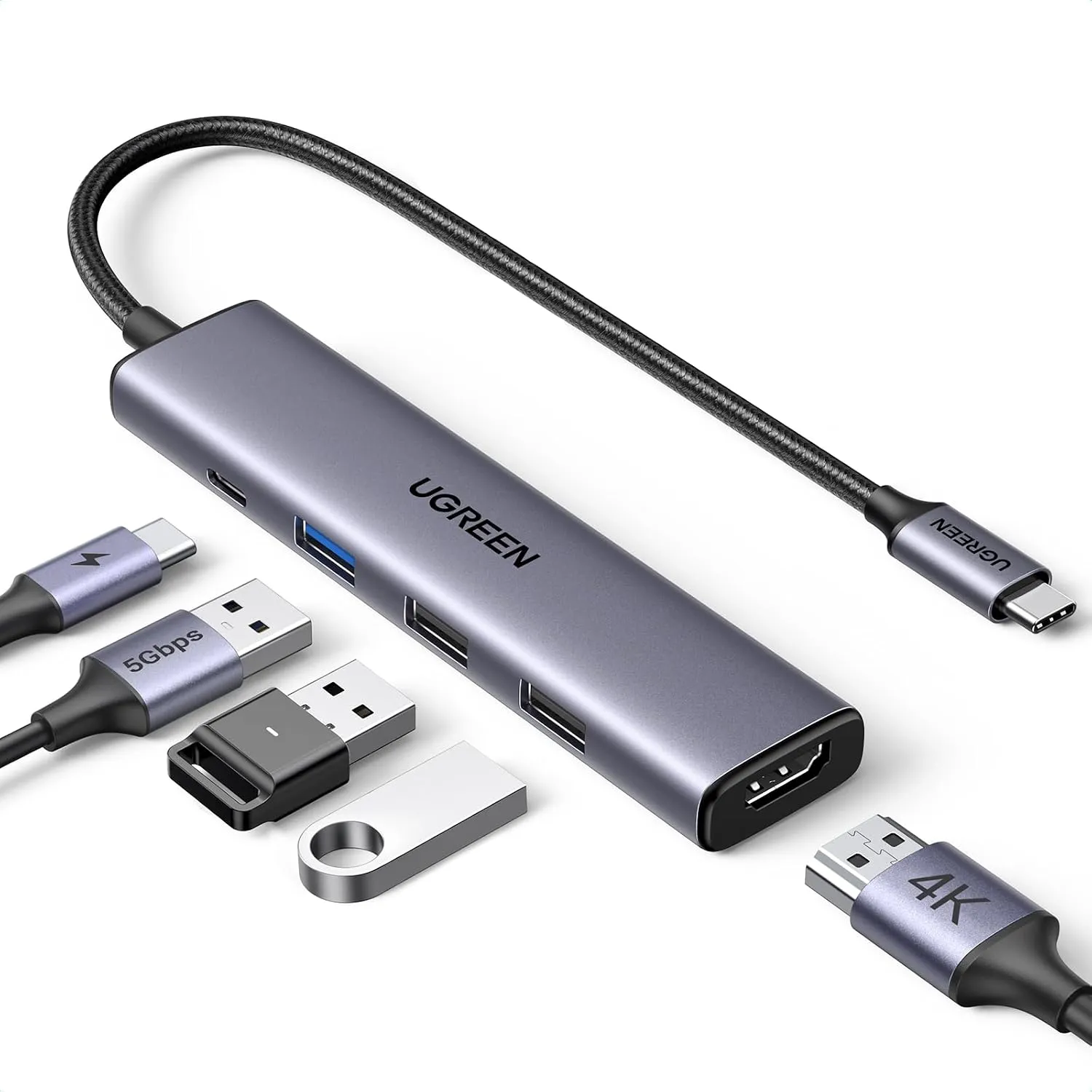
The UGREEN Revodok 105 is a cheap way to connect a laptop to a monitor, keyboard and mouse without buying a large docking station. At £9.99, its five ports cover a modest home-office setup for little money.
The main limit is HDMI at 4K/30Hz. If you work on a 4K monitor every day, a hub supporting 4K/60Hz is a more sensible starting point. The Revodok 105 is strongest when basic connectivity and a low price matter more than display flexibility.
What the five ports actually do
| Port | What it is for |
|---|---|
| HDMI | One external display, up to 4K at 30Hz |
| One USB-A 3.0 | Data transfers rated up to 5Gbps |
| Two USB-A 2.0 | Accessories or slower transfers, up to 480Mbps |
| USB-C PD input | Power from a separate compatible charger |
This is the Revodok 105, with three USB-A sockets and a single HDMI output. The grey version cost £9.99 on Amazon UK on 14 September 2026. Other Revodok models have different ports, so the family name alone is not enough to identify the right one.
Recommended retailer Check the UGREEN Revodok 105 on AmazonTypical price £9.99. Opens in a new tab. Check current priceWhy 4K/30Hz matters at a desk
Resolution tells you how much detail a display can show; refresh rate affects how frequently the image updates. At 30Hz, scrolling and pointer movement have fewer updates than at 60Hz. The difference matters when you spend the day moving between documents and browser windows.
That does not make the HDMI port useless. It gives an otherwise suitable laptop a straightforward route to an external screen. It does make the large "4K" label an incomplete buying guide.
Check the refresh rate you want at your monitor's resolution. If a 4K/60Hz screen is already on the desk, avoid choosing a hub that immediately limits it to 30Hz simply to save a small amount on the adapter.
A USB-C socket does not guarantee video
The laptop's port must support DisplayPort Alt Mode, or compatible video output through Thunderbolt or USB4, for the hub's HDMI connection to work. A USB-C socket used only for data will not gain video output because this hub is attached.
Charging support is another separate requirement. Look up the exact laptop model and port specifications, especially if it has several USB-C sockets with different capabilities.
For a compact setup with the laptop closed in a vertical stand, these checks come first. Otherwise you can end up with a tidy-looking arrangement that cannot drive the screen or charge the computer as intended.
Put the right accessory in each USB port
The single faster USB-A port is the one to reserve for an external drive. The other two are a useful home for a wired keyboard, mouse or compatible wireless receiver, where high transfer speed is not the priority.
There is no USB-C data port for a modern external SSD, and the power socket cannot fill that role. There is also no Ethernet connection or card reader. Count the devices you actually plug in before deciding that five ports are enough.
If you need adapters attached to adapters to accommodate everything, a hub with the correct connections is the cleaner purchase.
Charging needs more than the hub
The USB-C power input is advertised for up to 100W, but the hub itself uses power. The headline input figure is not a guarantee that the laptop receives 100W.
You supply the charger and charging cable. Their capabilities, the laptop's requirements and the hub's own power use all affect the result. A power-hungry workstation should be matched to a dock with a clearly specified laptop power output, rather than bought on the largest number in the title.
The power input also does not charge a second laptop while the hub serves the first. It is an input for powering the connected host.
Does it keep a small desk tidy?
The housing is compact, but the HDMI plug, USB accessories and charging lead still need room around it. Position it beside the laptop with the cables heading towards the back of the desk, rather than leaving them across the mouse area.
The attached laptop lead keeps the kit simple to pack away, although it gives less placement freedom than a dock with a detachable host cable. Let the hub rest on the surface instead of hanging it from a raised laptop's socket.
Buy the Revodok 105 for a small, uncomplicated workstation whose ports and display requirements match it. Spend more for 4K/60Hz, Ethernet or USB-C data, because those are functional differences that tidier cable routing cannot fix.
Where to go next
Continue from this article into the most relevant compact setup guides, reviews, and hubs.
Accessory guide
Best Monitor Arms for Small Desks UK 2026
Compare clamp arms, premium arms, and no-clamp options for smaller desks.
Read next
Desk depth
What Desk Depth Do You Need for a 24-Inch Monitor?
Check whether the accessory solves the real problem, or whether the desk is too shallow.
Read next
Desk hub
Small desk reviews
Browse compact desks that pair well with monitor arms, laptop stands, and tidy cable routes.
Read next